From design to API spec, priced by the work that is left
Your approved design describes endpoints and screens in words. The API Spec form turns them into choices a compiler can read: which endpoint is plain CRUD, which is a query, which needs custom work. One small AI call fills the form, you check and approve it, and the compiler builds everything the form covers without spending AI tokens. What is left is all you pay AI for.
You need: a project whose design is approved. Time: about five minutes.
Step by step
Screenshots: production, 25 Sep 2026, on real apps (mindDNA, MoveDNA, ClinicAi).
- 1
Open the API Spec tab
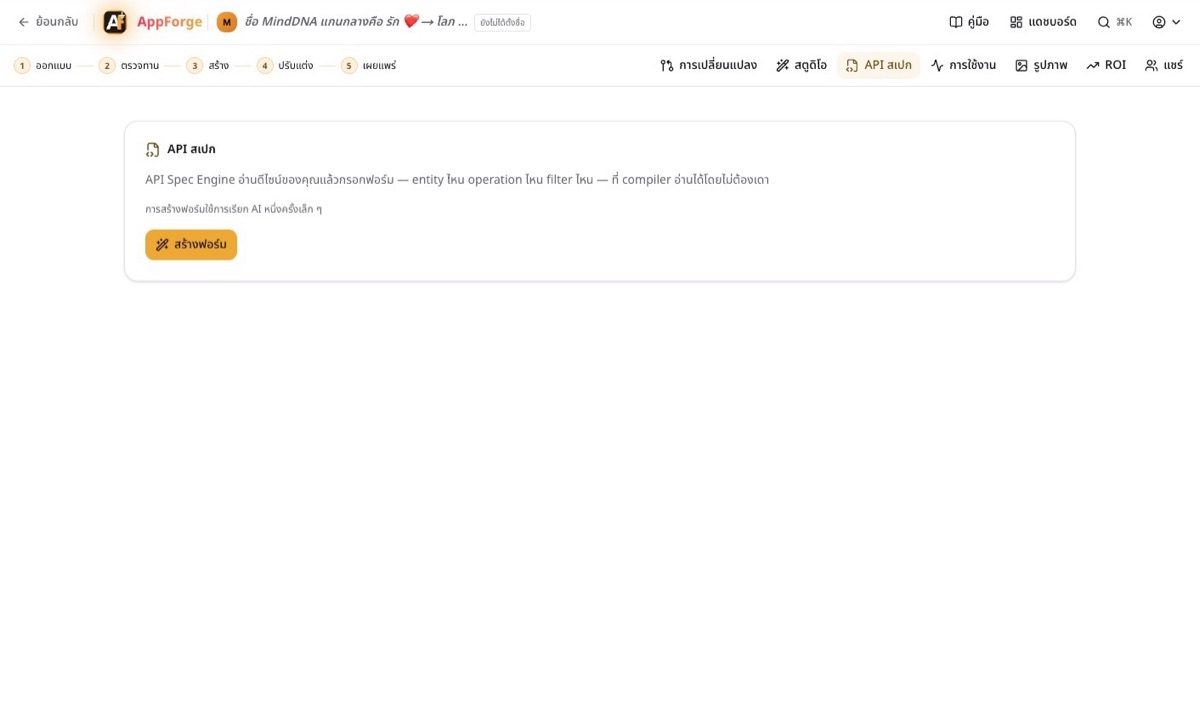 DoIn your project, choose API Spec in the top menu.You will seeAn empty page with Generate the form. It says up front that this is one small AI call.
- 2
Generate the form and read its header
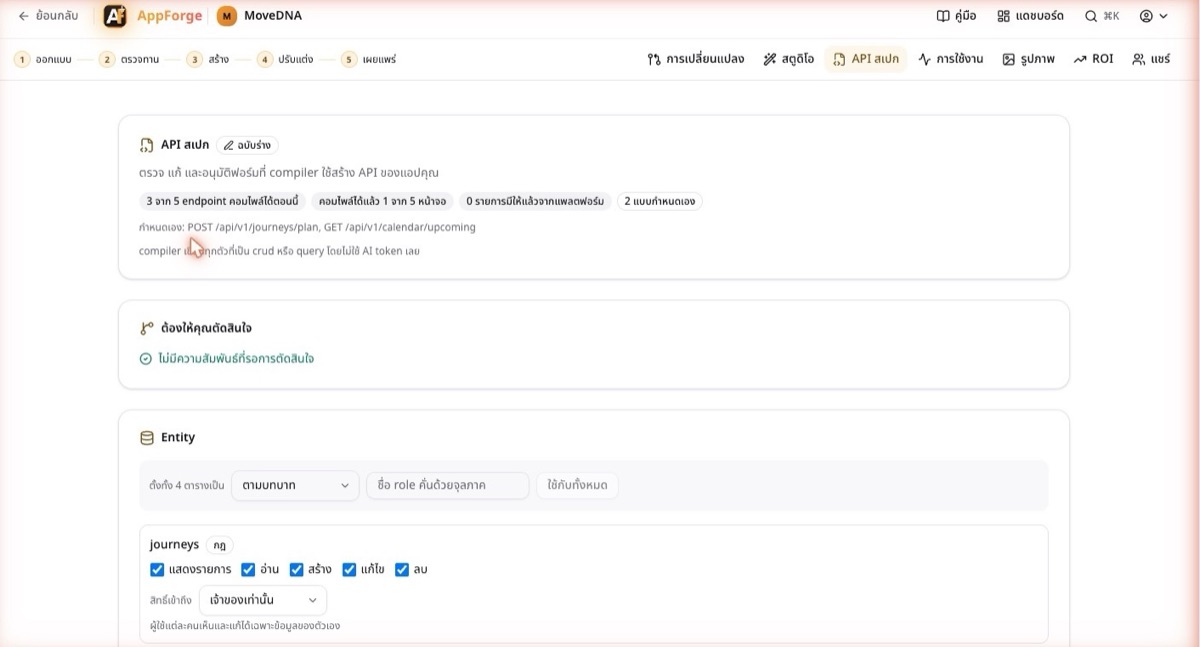 DoPress Generate the form and wait about 20 seconds.You will seeA draft, and a summary: how many actions the system builds now, how many screens, and which items are custom, by name.
Tip: Nothing reaches your build until you approve. Until then this is only a draft.
- 3
Check the endpoints
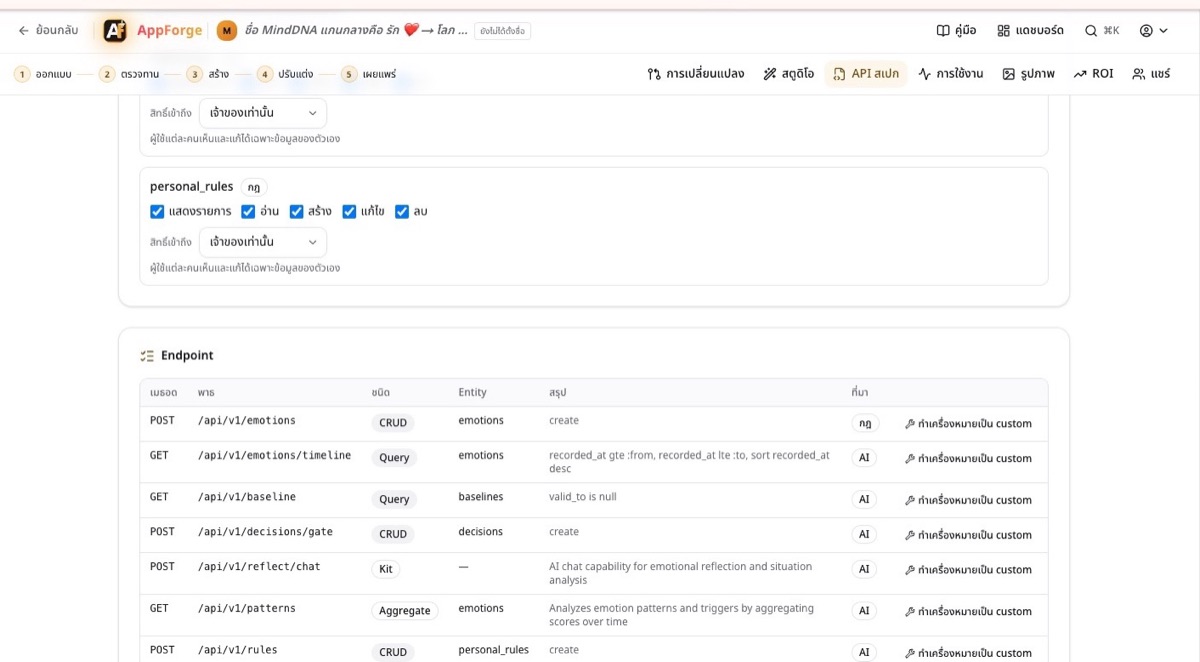 DoRead the kind of each row, and where it came from: Rule or AI.You will seeCRUD, Query and Aggregate are written by the compiler with no AI tokens. Kit and Custom are the work that remains.
Tip: Disagree with a row? Mark it custom. A custom row that is really plain CRUD has a Serve as CRUD button.
- 4
Check the screens
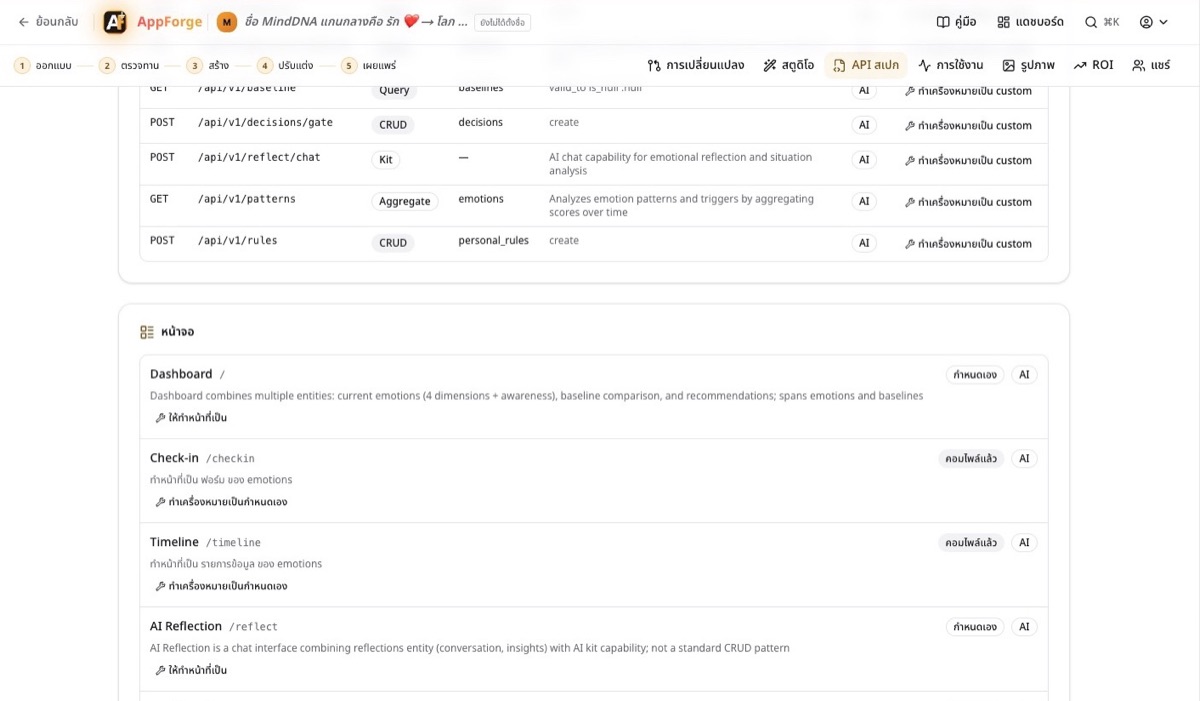 DoLook at the label beside each screen.You will seeCompiled: a page over one table, such as a form or a list. Custom: it combines several tables, with the reason. Platform: every app already has it, so it costs nothing.
- 5
Decide the relations (if asked)
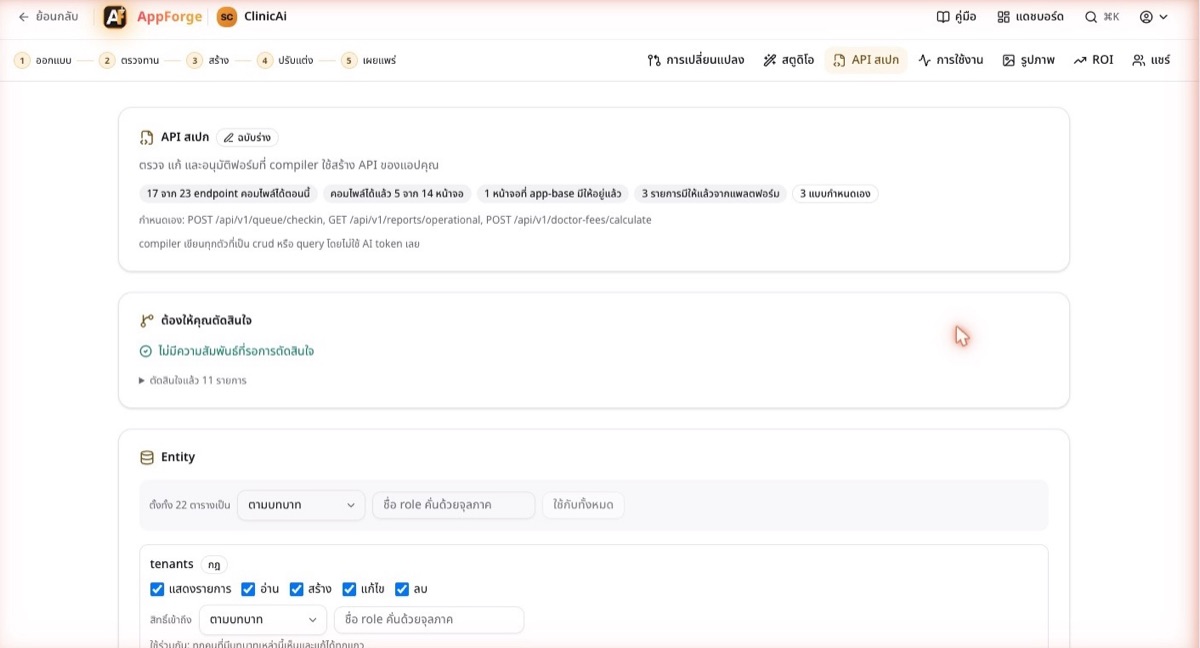 DoPress Use the suggested targets, then read each relation. If a target is wrong, pick another or drop it.You will seeThe Needs your decision box empties and shows how many you decided.
Tip: Read the reason on each one before you accept it. It says when a link should really go through another table.
- 6
Set who can see each table
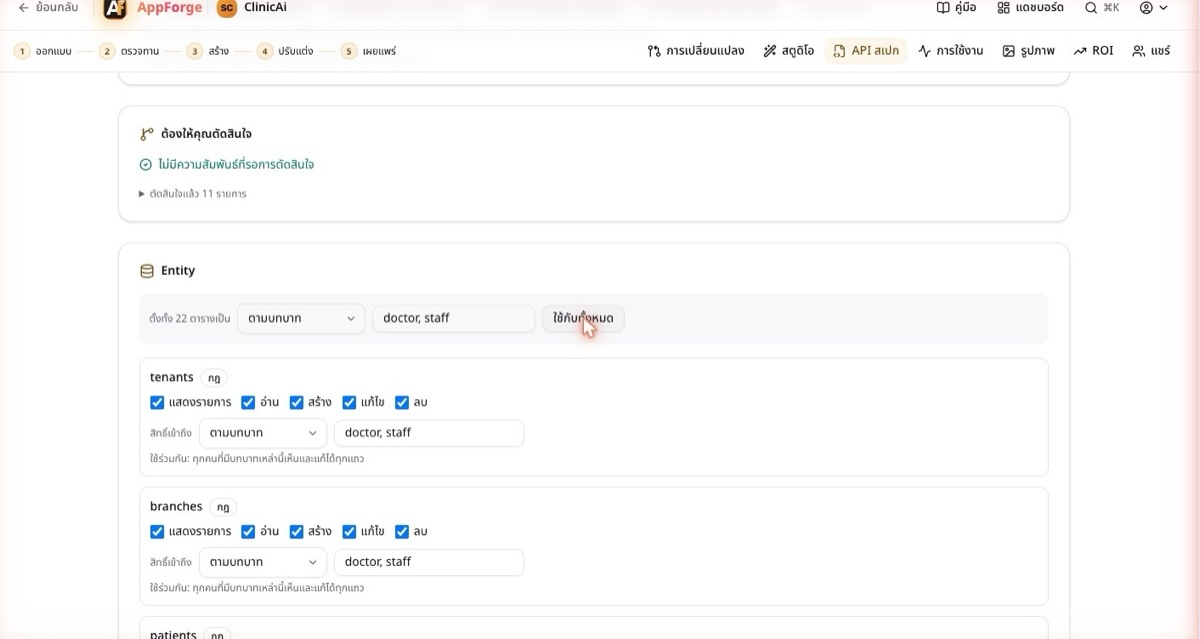 DoPersonal data: Owner only. Data shared inside an organisation: By role, then type the role names. The bar at the top sets every table at once.You will seeEvery table shows the access you chose and what it means in plain words.
Tip: After any change, press Save first. Approve stays disabled while there are unsaved edits.
- 7
Approve
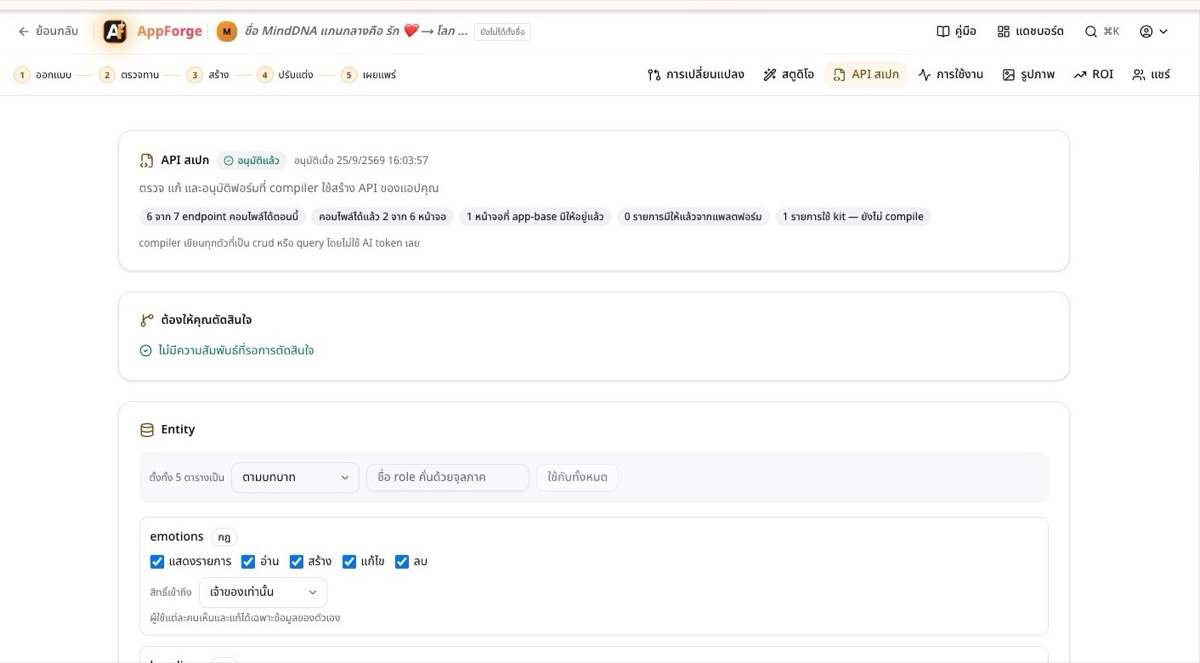 DoPress Approve at the bottom of the page.You will seeThe status becomes Approved. Your next build compiles from this form. If you edit it later, it goes back to draft until you approve again.
- 8
Read the Ready to build card and choose
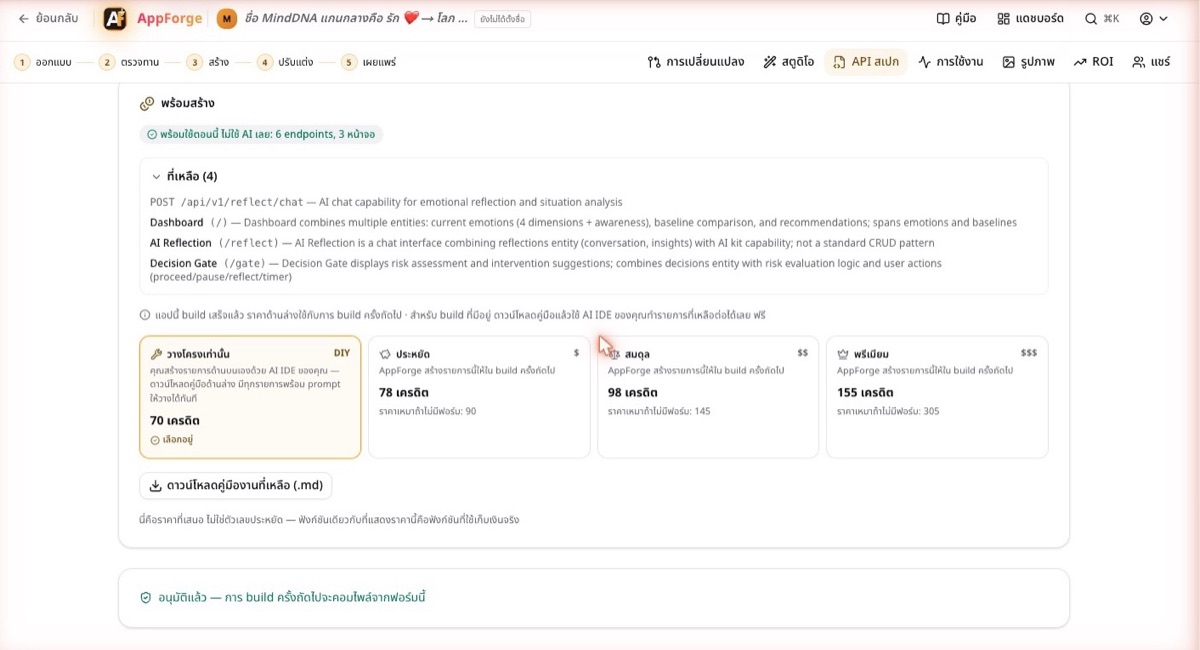 DoOpen Left to see every remaining item and why, then compare the four prices.You will seeWhat is ready now with zero AI tokens, what is left, and four prices, each beside today's flat price for comparison. The last step depends on whether your app is built yet (below).
Two ways to finish
Not built yet
Pick a package and go to the build step. The build compiles everything the form covers, then the AI works only on the remaining list. Scaffold only means you build that list yourself from the guide.
Already built
The card says so, and its prices apply to the next build. For the app you have, press Download the remaining-work guide: REMAINING_WORK.md lists every item with a paste-ready prompt for your own AI IDE. It is free.
How the price is worked out
Price = scaffold + kits + the AI part of today's flat price × the share of the work still left (endpoints and screens, weighed by the model cost each needs), rounded up once.
Nothing compiled costs exactly today's flat price; everything compiled costs exactly the scaffold price. An approved form can only lower the price.
mindDNA on 25 Sep 2026: 6 of 7 endpoints and 3 of 6 screens ready without AI. Credits; the flat price without the form in brackets.
| Package | With the form |
|---|---|
| Scaffold only | 70 (70) |
| Economy | 78 (90) |
| Balanced | 98 (145) |
| Premium | 155 (305) |
Good to know
- Why are some screens custom?
- The compiler builds pages over one table: a form, a list, a detail view. A dashboard, a board or a wizard that combines several tables is custom, and the reason is written beside it. Those are the items the price counts.
- I pressed Generate again and the draft changed a little
- The endpoint answers repeat, but a screen near the line between list and dashboard can land either way. Once you approve, the form is stored and never changes by itself; the build reads the stored form.
- Does the access I choose really apply?
- Yes. Owner only means each user sees and edits only their own rows, including rows reached through a parent. By role means only the roles you name. This is enforced in the compiled API, not only in the page.
- Is the price on the card the price I pay?
- Yes. The card and the charge use the same pricing function. On 25 Sep 2026 all twelve prices shown for three real apps matched an independent calculation.